> For the complete documentation index, see [llms.txt](https://learn.squirrel365.io/llms.txt). Markdown versions of documentation pages are available by appending `.md` to page URLs; this page is available as [Markdown](https://learn.squirrel365.io/components-functions-and-connections/overview/dataviz/trend-icon.md).
# Trend Icon
{% hint style="success" %}
**Who can use this feature?**
All Squirrel365 plans include the Trend Icon component.
For more details, see our [**pricing comparison matrix**](https://squirrel365.io/pricing/).
{% endhint %}
{% hint style="info" %}
Squirrel 1.12 introduced a “Quick Set-up” tab on many property panels. The properties described on this page are available on the “All Properties” tab of the property panel. For more details on “Quick Set-Up” properties see [**this article**](https://squirrel365.gitbook.io/learn/how-tos/set-property-values)
{% endhint %}
The **Trend Icon** is a visualization component that can be used to immediately display an upward, downward, or steady trend based on a value above or below 0.
## Trend Icon Properties
The **Trend Icon** component properties consist of **LAYOUT & POSITIONING, GENERAL, STYLING,** and **DYNAMIC VISIBILITY** sections.
This guide will describe all sections besides the [**Layout & Positioning**](/components-functions-and-connections/overview/layout-and-positioning.md) and [**Dynamic Visiblity**](/getting-started/core-concepts/dynamic-visibility.md) sections, as these are generic to each component. A separate guide and tutorial for each can be found by clicking the links above.
The component properties are set and edited using different methods, some have multiple methods, some just one. See this [Set Property Values](https://squirrel365.io/knowledgebase/set-property-values/) article for more information on using the different methods.
***
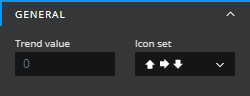
### GENERAL
* **Trend value** - an input property that is bound to the spreadsheet. This is the value that determines the trend icon displayed, ranging from **Negative** (below zero), **Zero** and **Positive** (above 0)
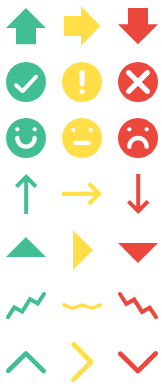
* **Icon set** - a dropdown to select the icon set that is displayed on the component.
***
### STYLING
These properties apply to the styling options for the Trend Icon
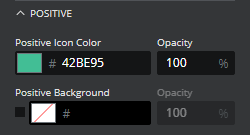
* **Positive**
* **Positive Icon Color** - an input property to set the Positive Icon color
* **Opacity** - an input to adjust the opacity of the Positive Icon color
* **Positive Background** - an input property to set the Positive Icon background color
* **Opacity** - an input to adjust the opacity of the Positive Icon opacity color
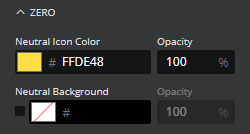
* **Zero**
* **Zero Icon Color** - an input property to set the Zero Icon color
* **Opacity** - an input to adjust the opacity of the Zero Icon color
* **Zero Background** - an input property to set the Zero Icon background color
* **Opacity** - an input to adjust the opacity of the Zero Icon opacity color
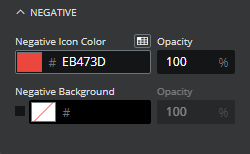
* **Negative**
* **Negative Icon Color** - an input property to set the Negative Icon color
* **Opacity** - an input to adjust the opacity of the Negative Icon color
* **Negative Background** - an input property to set the Negative Icon background color
* **Opacity** - an input to adjust the opacity of the Negative Icon opacity color
{% hint style="info" %}
If the 'face' or 'check/exclamation/cross' options are selected, then **Corner** properties are added to each of the styling sub-sections.
* **Corners** – This property determines the corner radius of the **Rectangle** component border. Use the slider to amend this property, or type a numerical value into the property field.
* **Individual Corners** - selected this property to apply different radii to each of the component's corners. Each of these individual inputs can be manually edited or bound to the spreadsheet.