> For the complete documentation index, see [llms.txt](https://learn.squirrel365.io/llms.txt). Markdown versions of documentation pages are available by appending `.md` to page URLs; this page is available as [Markdown](https://learn.squirrel365.io/getting-started/core-concepts/data-insertion.md).
# Data Insertion
Data insertion is the copying of data from one area of the spreadsheet into another. Typically, it is used by control components (for example, a push button, a radio button, or a dropdown box), where the user’s choice determines which data is copied and pasted into a different cell or a range of cells. This copied data can then be used by other functions or even bound to the properties of other components.
The data mover function is also used to insert and/or move data behind the scenes.
Binding other components to the copied data means that they will update in response to the user’s selection.
Follow this Step-by-step guide below to see how you can easily incorporate data insertion into your Squirrel projects:
### Step-by-step:
Many components in Squirrel have data insertion properties; these are mostly control components, but the text input component also inserts data. There is also some variation in how these components handle data insertion, so the following sections will cover the different methods.
#### Text Input
This is possibly the simplest form of Data Insertion; text added to a text input component by the user is inserted into a single cell in the spreadsheet.
1. Add a text input component to the canvas and select it.
2. Expand the **DATA INSERTION** drawer in the properties panel.
3. Bind the **Destination** property to an empty cell.
4. Switch to **DEBUG** mode and show the spreadsheet (if not visible).
5. Type a word or value into the text input component and press Enter.
6. The cell bound to the destination property of the text input component updates accordingly.
{% hint style="info" %}
In the spreadsheet, change the colour of any Destination cell(s) to yellow; this will remind you that the content of these cells will change during runtime and not to use them for other purposes.
{% endhint %}
#### Single Data Insertion
Some components, such as Buttons or Checkboxes, allow just one set of data (the contents of one cell or a range of cells) to be copied into another area of the spreadsheet.
1. In cell **A1** of the spreadsheet, add MoveThis.
2. Add a pushbutton component to the canvas and select it.
3. Expand the **DATA INSERTION** drawer in the properties panel.
4. Bind the Source property to cell **A1**.
5. Bind the **Destination** property to an empty cell.
6. Switch to **DEBUG** mode and show the spreadsheet (if not visible).
7. Click the pushbutton component.
8. The cell bound to the destination property of the pushbutton component will now also contain MoveThis.
#### Series Data Insertion
Some components, such as radio buttons, dropdowns, or list boxes, allow for one *or* more sets of data (the contents of one cell or a range of cells) to be copied into another area of the spreadsheet.
1. In the spreadsheet, add Option 1 to cell **A1**, Option 2 to cell **A2**, Option 3 to cell **A3,** and Option 4 to cell **A4**.
2. Add a radio button component to the canvas and select it.
3. In the **GENERAL** drawer of the properties panel, click the data binding icon above the List items property.
4. Select cells **A1** to **A4** or type **Sheet1!A1:A4** into the range field and click the **Confirm** button.
5. The radio button labels will correspond to the contents of cells **A1** to **A4**.
6. Expand the **DATA INSERTION** drawer of the properties panel.
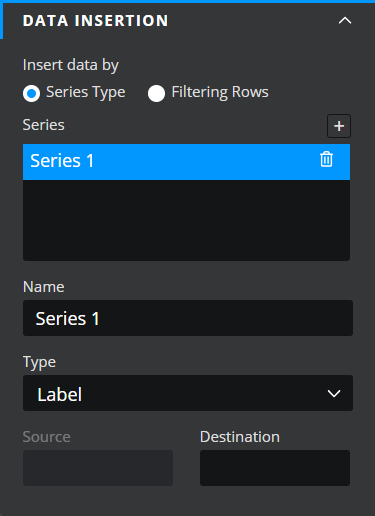
7. In the **Series** property field, a default series (Series 1) is already selected.
8. Rename this series if you wish by entering a new name in the Name property field.
9. Select a **Type** from the dropdown list. The following sections describe what each type is and how to use it:
10. **Position** – Each button of the component is identified by a position value. The first button is position 1, the second is position 2, and so on. Clicking each button will place its position value into the destination cell.
* No source is required.
* Bind the destination property to an empty cell in the spreadsheet.
* Switch to **DEBUG** mode.
* Select one or more radio buttons.
* Clicking the first button will insert a 1 into the destination cell, clicking the second will insert a 2, and so on.
11. **Label** – This is the text alongside each button. Clicking each button will copy its label into the destination cell.
* No source is required.
* Bind the destination property to an empty cell in the spreadsheet.
* Switch to **DEBUG** mode.
* Select one or more radio buttons.
* Clicking the first button will insert Option 1 into the destination cell, clicking the second will insert Option 2 into the destination cell, and so on.
12. **Value** – This type requires one source value per button in the radio button component. Selecting a radio button will copy the corresponding value into the destination cell.
* In the spreadsheet, add 5 into cell **B1**, 6 into cell **B2**, 7 into cell **B3,** and 8 into cell **B4**.
* Click the data binding icon above the Source property.
* Select cells **B1** to **B4** or type **Sheet1!B1:B4** into the range field and click the **Confirm** button.
* Bind the destination cell to an empty cell in the spreadsheet.
* Switch to **DEBUG** mode.
* Select one or more radio buttons.
* Clicking the first one will insert 5 into the destination cell, clicking the second will insert 6 into the destination cell, and so on.
13. **Row** – This type requires one source row of data per button in the radio button component. The corresponding row will be copied into a destination row.
* In the spreadsheet, add data to four rows (see image below).
* Click the data binding icon above the Source property.
* Move the mouse cursor to the start of the topmost row and click so that the row is selected and then drag down to select all four rows.
* Click the **Confirm** button.
* Click the data binding icon above the destination property.
* Move the mouse cursor to the start of an empty row and click so that the row is selected.
* Click the **Confirm** button.
* Switch to **DEBUG** mode.
* Selecting one or more radio buttons.
* Clicking the first one will insert the topmost row into the destination row, clicking the second will insert the second row into the destination row and so on.
* **Column** – This type works in the same way as the Row type, but as the name suggests, instead of the data being in rows, the source and destination properties must be bound to columns.
* **Status List** – This type returns a comma-separated list of 0s and 1s; the number of items in the list relates to the number of buttons in the radio button component. The selected button is denoted by a 1, the unselected buttons are represented by a 0.
* No source is required.
* Bind the destination property to an empty cell in the spreadsheet.
* Switch to **DEBUG** mode.
* Selecting Option 1 will add 1,0,0,0 into the destination cell, selecting Option 2 will add 0,1,0,0 into the destination cell, and so on.
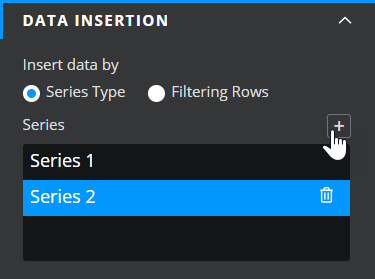
* To add another **Data Insertion** series, click the plus button above the Series property field.
11. Then follow steps 8 to 10.
12. Both **Data Insertion** series will be actioned when interacting with the radio button.
You can now use the inserted data; bind it to component properties, use it to determine what components should be visible on the canvas, use it to trigger other actions, and so on.
*itThat’s the end of this tutorial on Data Insertion. Try experimenting with the different components to see how they handle data insertion and how you can use that within your projects. If you haven’t already used the Data Mover function, that also can be used to move data around the spreadsheet.*