> For the complete documentation index, see [llms.txt](https://learn.squirrel365.io/llms.txt). Markdown versions of documentation pages are available by appending `.md` to page URLs; this page is available as [Markdown](https://learn.squirrel365.io/the-designer/overview/best-practices-for-the-squirrel-spreadsheet.md).
# Spreadsheet best practice
This article describes our recommended best practices to utilise the Squirrel Spreadsheet to its full potential and keep your data organised
## Best practices for setting up your spreadsheet
When creating your Squirrel project, it’s natural to focus on the canvas and visual design—after all, you want your project to look great! However, it's equally important to keep the underlying spreadsheet well-organized. A cluttered, chaotic spreadsheet can quickly become a nightmare to troubleshoot and even harder to hand off to someone else.
To ensure your project remains easy to manage and understand, here are some key tips for maintaining a clean and efficient spreadsheet:
### Using Color Fill on Cells
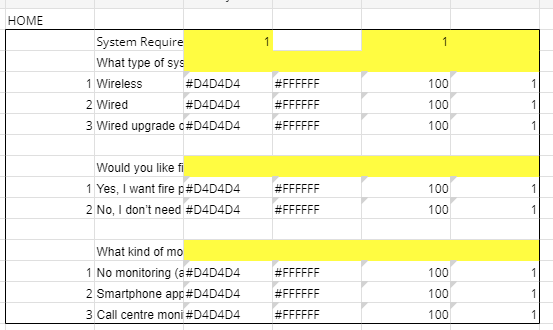
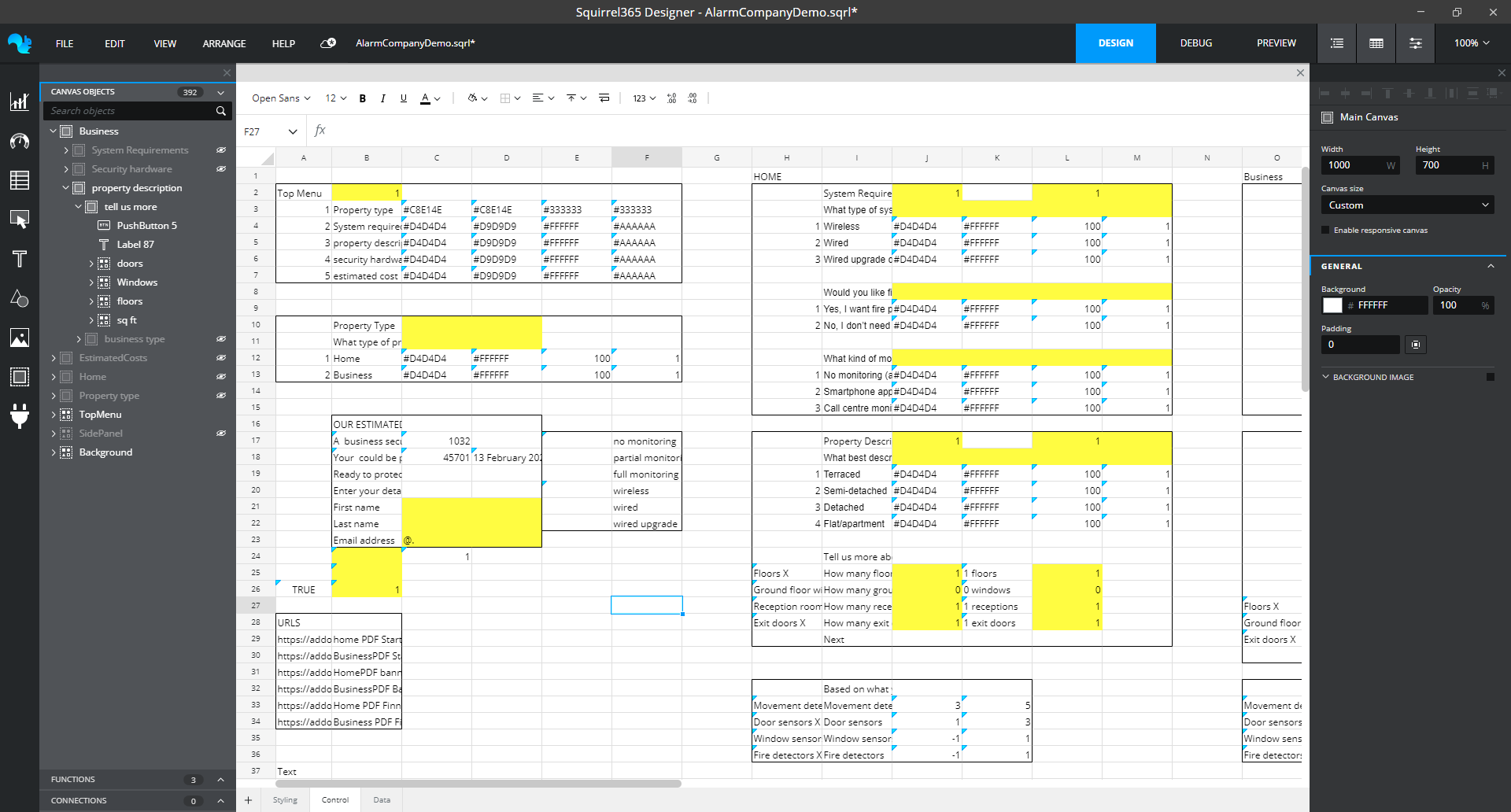
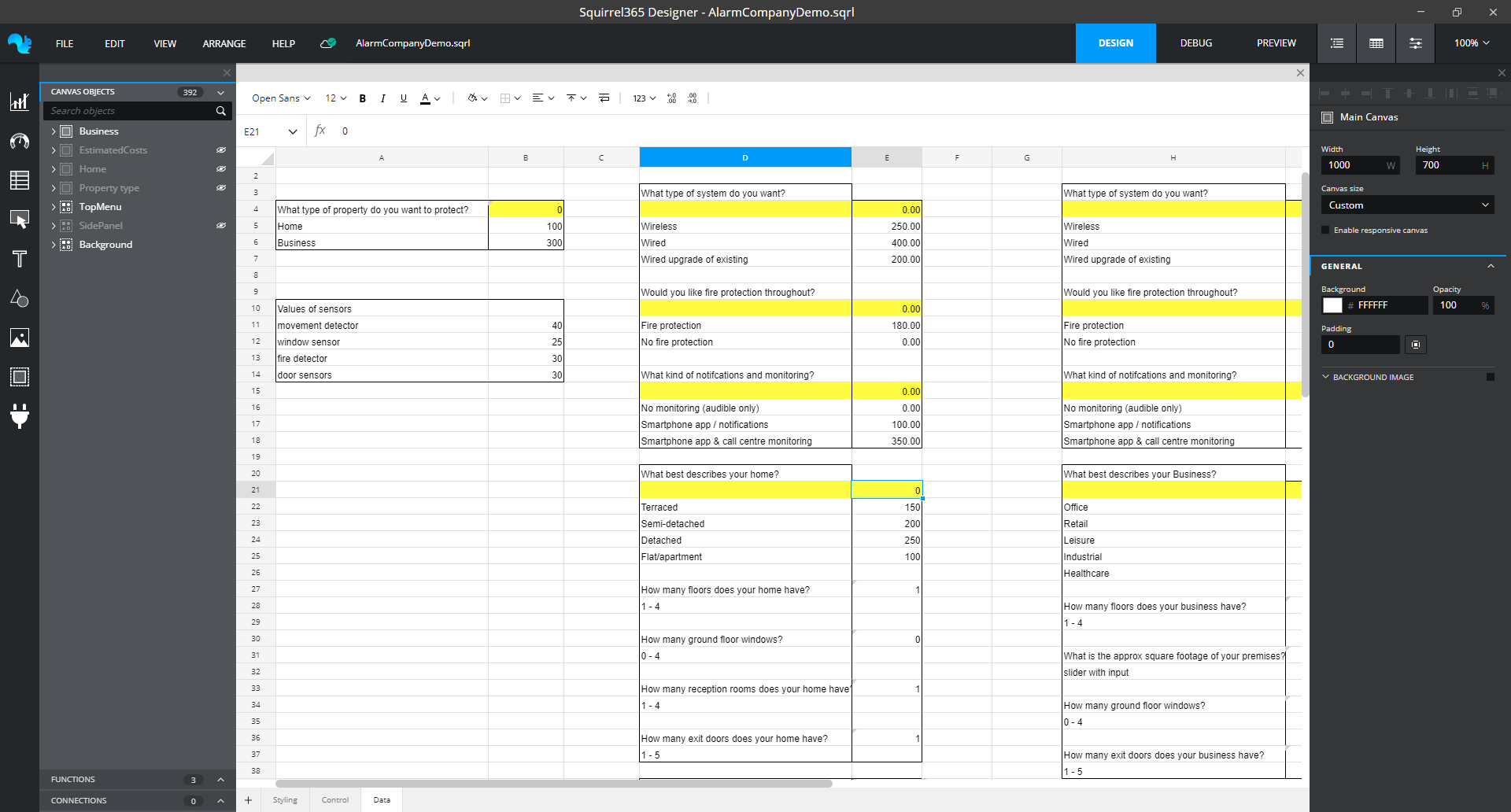
It is highly recommend to apply a fill color to cells that involve interactivity or data insertion. These cells often appear ‘empty’ in the spreadsheet, making it easy to accidentally add data that could later be overwritten by new insertions. A simple color fill helps prevent this confusion and keeps your spreadsheet organized.
### Create a Key
If there’s a chance you’ll need to hand off your project to someone else, creating a key is essential. A well-designed key will explain the meaning behind each color fill and highlight how to identify formulas. This will undoubtedly save the next user a lot of time and frustration, making the spreadsheet much easier to navigate.
### Organize the Spreadsheet by Tabs
It’s tempting to quickly place information in the first available spot in your spreadsheet, but this can lead to a messy mix of component styling, controls, and data. Before you know it, you might struggle to determine if your label-based menu controls are affecting your total cost values.\
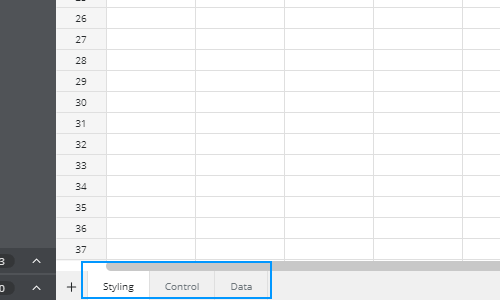
To avoid this, organise your Squirrel project by creating separate tabs for styling, functions/controls, and data. If your project involves a large amount of data, feel free to add more tabs as needed. This simple structure keeps everything clear and easy to manage.
#### Styling Tab
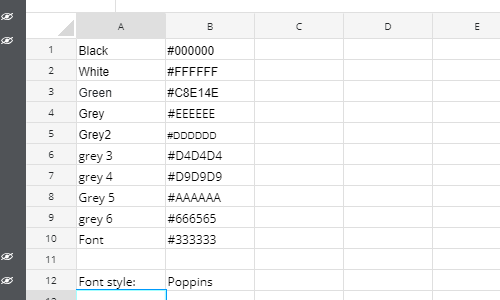
The styling tab is just what it sounds like—a dedicated space to store all your color settings for components. By binding all your colors to this single location, any changes you make can be updated easily in one place. This not only simplifies updates but also ensures consistency across your project.\
Additionally, having all your colors centralized makes it easier to use them in formulas.
#### Control Tab
The control tab is where all the interactivity in your project resides. Any element that responds to changes on the canvas should be placed here, keeping your project’s interactive components organized.
#### Data Tab
The data tab is where all the information you want to display in your Squirrel project is stored. If you have a large amount of data, consider organizing it across multiple data tabs to maintain clarity and manageability.
### Grouping and Labeling Data Inside the Squirrel File
Lastly, group and label your data within your Squirrel spreadsheet for better organization. For instance, if you have a label-based menu in your control section, keep all related labels and interactivity together, clearly identifying it as the label-based menu control.\
To enhance clarity, add a title or description above or beside each section of data. Grouping can be accomplished by leaving a row or column gap around the data, but using a border around each section makes it more visually prominent and easier to navigate.