> For the complete documentation index, see [llms.txt](https://learn.squirrel365.io/llms.txt). Markdown versions of documentation pages are available by appending `.md` to page URLs; this page is available as [Markdown](https://learn.squirrel365.io/how-tos/creating-toggle-buttons.md).
# Creating Toggle Buttons
This guide shows you how to create toggle buttons using push buttons and spreadsheet formulas.
## Toggling values to trigger actions
A toggle button lets users switch between two states (like On/Off or Show/Hide) with a single click. It is a convenient way to have a user interaction trigger a function, refresh a connection or control when an object should be visible (dynamic visibility) when the condition is set to on cell change.
### Basic Toggle Button Setup
#### Step 1: Set Up Your Toggle Values
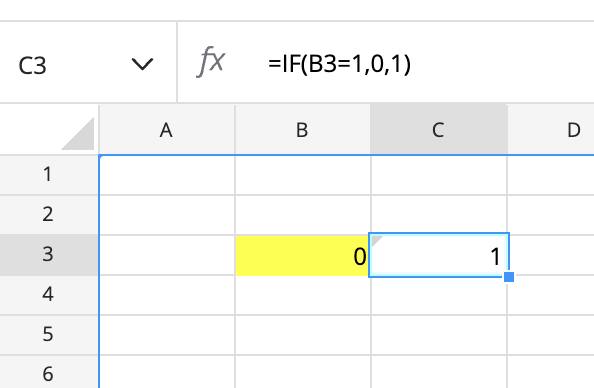
1. In your spreadsheet, select a cell that will be the destination for the push button and enter 0 as a default state.
2. In an adjacent cell add the formula (replace \[toggle\_cell] with the cell you have selected)
```
=IF([toggle_cell]=1,0,1)
```
This formula checks the value of the cell being referenced and returns the opposite state.
{% hint style="info" %}
#### You dont just have to use 1 and 0 to represent the state. You can use any boolean pair of values. Descriptive boolean values like 'On', 'Off' or 'Show', 'Hide' can make it easier to understand what is happening in your project.
{% endhint %}
#### Step 2: Add and Configure the Push Button
1. Add a push button to your canvas
2. Bind the button so it pushes the calculated toggle value into the cell holding the current state
3. Test in debug mode to verify the cell toggles with each button press
### Using Your Toggle Button
Once created, you can use the toggle to control various elements in your project.
#### Example: Show/Hide Objects
To make an object (like a chart) appear or disappear based on the toggle:
1. Select the object you want to control
2. Find its Dynamic Visibility property
3. Bind it to show only when the toggle is "On"
#### Example: Move a block of data
To move a block of data each time a button is pushed:
1. Add a data mover to your project
2. Set the insertion type to block
3. Bind the source and destination range
4. Select the Trigger when option to be when 'Cell changes'
5. Bind the trigger cell to be the same as the destination for you toggle button.
### Advanced: Custom Toggle Images
Create a more visual toggle by using custom images for On and Off states.
#### Method 1: Two Image Buttons
1. Add an image to the canvas to represent the "On" state
2. Copy and paste this button to create a second button for the "Off" state
3. Change the second button's image to represent "Off"
4. Select both buttons (hold Shift key) and use alignment options to position them exactly on top of each other
5. Configure Dynamic Visibility:
* On image: visible when toggle is "On"
* Off image: visible when toggle is "Off"
6. Reposition your push button over the images
7. In the Object Browser, drag the push button below the images to bring it to the front
8. Turn off all visual properties of the push button to make it transparent
Now clicking the toggle image will drive the state transition with your custom visuals.
#### Method 2: Single Dynamic Image
For a more streamlined approach using one image component:
1. Add a single image to the canvas
2. Remove any dynamic visibility settings
3. Create a formula that returns the appropriate image link based on the toggle state:
```
=IF([toggle_cell] = "On", "[on_image_url]", "[off_image_url]")
```
4. Bind this formula to the image component's link property
5. Position your transparent push button over the image
The image will automatically change based on the toggle state.
### Tips
* Test your toggle in debug mode to verify the state changes correctly
* Use descriptive names and highlight your cells to keep your spreadsheet organized
* Custom images make toggles more intuitive for end users
### Common Use Cases
* Show/Hide charts or data panels
* Switch between different views or modes
* Enable/Disable features
* Toggle between light/dark themes
* Control visibility of help text or instructions